Thursday, March 20, 2025

GST Explanation

 GST Explanation


If a member is a "Merchant Exporter" , the logic is:


If the state of their supporting unit has an office of CAPEXIL, then CGST and SGST is applicable, otherwise IGST. 


If a member is not a Merchant Exporter there won't be any supporting unit

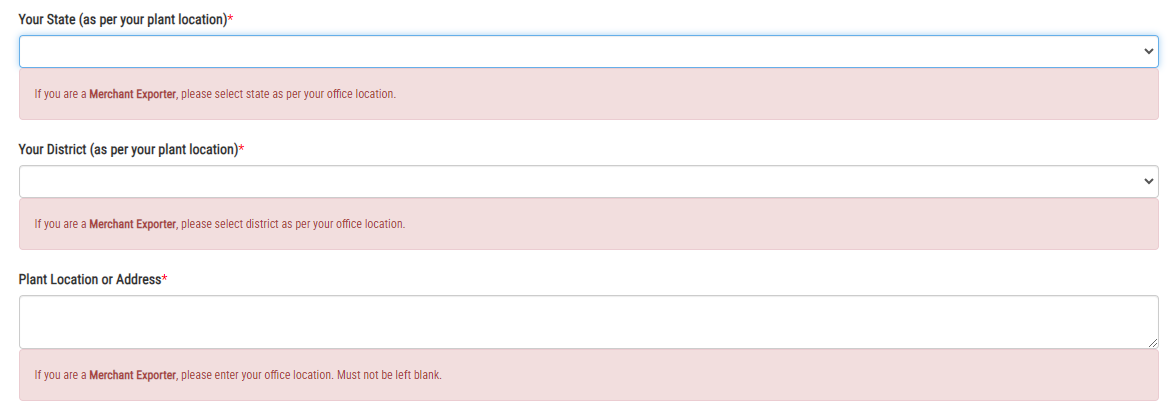
if the State of Member's plant location has an office of CAPEXIL (e.g. If the Plant is in Maharashtra, and CAPEXIL office is there in Maharashtra, Mumbai), then SGST and CGST will be applicable. Otherwise, IGST.

Saturday, February 15, 2025

As a Member, I want to change the Contact Person Details of my Company

 Steps to Change the Contact Person Details

  1. Login with your credentials as a Member by going to the link: https://www.capexilcertifications.in/
  2. Go to the top menu > Extreme right Menu that reads, 'Logged In As <your-email-address>'
  3. Click on the 'Logged-In As..' menu  > go to Edit Profile
  4. When the page opens, see lower half of the screen with the heading, 'Personal Information'
  5. You can edit the Contact Person Name and/or Mobile number
  6. Then Save the details that have been edited.
  7. Wait for the confirmation message in green saying that the details have been saved successfully.


Friday, April 19, 2024

As a member, how can I change my email address, phone number, or password?

 As a member, how can  I change my email address, phone number, or password?


  1. Log in as a member with your username and password to https://www.capexilcertifications.in/
  2. You need to click on your email that appears on the top menu bar (see extreme right at the top, 'Logged in as'), and open menu that says Edit Profile.
  3. Enter or Edit details on the page that opens and click on Save 

Wednesday, February 21, 2024

As a Member, how can I change details of my plant?

 As a Member, how can I change details of my plant?


Prerequisite


The status of your concerned plant approval certificate has to be set to NEW. 


Steps to follow


1. Please ask the concerned Capexil officer to change your plant approval certificate to state "NEW". 

2. Once the plant approval certificate status is changed to NEW, login as a member to the application https://www.capexilcertifications.in/ with your username and password

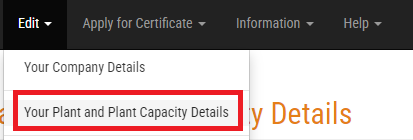
3.  Go to top menu > Edit > Your plant and plant capacity details


4.  Once this page opens, please look for the plant for which you need to modify the address. Click on the "Open Plant Details" button in the same row.


5.  For example, to change your plant address on the page that opens and click on the Save Details button.


6. Likewise - you change other details that are editable on this page.

7.  Go ahead and re-apply for the plant approval certificate by going to the top menu > Apply for Certificate > Plant Approval Certificate. Open your certificate and click on the apply button.

Friday, February 24, 2023

As an Administrator, how to temporarily extend a Plant Approval Certificate?


Pre-requisite


Plant approval certificate must be in APPLIED state.

If the plant approval certificate is in APPROVED state, then the Administrator must make it 'SET to NEW' and then ask the concerned member to APPLY again by clicking on the apply button at the member's end.  This will put the plant approval certificate in APPLIED state as a prerequisite.


Steps


  1. An Administrator can manually give extension to a Plant approval certificate by first setting it to NEW state (by logging in as an admin) if it is not in NEW state already.
  2. Ask the member to re-APPLY such that the certificate is in APPLIED state.
  3. Then while approving - Choose the criteria for expiry called 'Expiration Period' from the dropdown menu that is available to the administrators at the time of approving a certificate.
  4. Choose Re-calculate Expiry dropdown as "Yes"
  5. Finally APPROVE the certificate by clicking on APPROVE button.


Wednesday, May 12, 2021

As an Administrator, how to complete a Cheque/DD payment?

Prerequisites

The payment must be received in Capexil's bank account.  You need to check payment individually.  If any payment is not credited to Capexil's account, then marking that payment as COMPLETED would be incorrect.

The payment mode should be Cheque/DD.

The Steps:


I am listing steps below on how you, as an Administrator can mark the payments as COMPLETED.
  1. Login as Administrator
  2. Go to Top Menu > Other Listings  > All Payments
  3. Payments table will appear, with column names. Lookout for the 'Cheque No' column and enter cheque number of the payment, e.g. 422464.
  4. Open that particular payment by clicking on the "Open" button on the extreme right.
  5. Scroll down to the bottom of the page that opens.  See the section "Fee Details."  Right below you would see a button, "Set Completed." 

  6. You simply have to click this "Set Completed" button to complete this particular payment.
  7. Repeat this exercise for all pending payments that you need to mark as COMPLETED and ensure first that the payment has been credited to Capexil's bank account. 

Tuesday, March 23, 2021

As an Administrator, how to update GST Number for a Member Plant

 Steps to Follow.

1. Login as an Administrator - https://www.capexilcertifications.in/

2. Go to Top Menu  > All Certificates > All Plant Approval Certificates. Search for the particular plant approval certificate using various fields available as columns.


3. Once you have found the PAC, click on the open button to view the same.

4. Look for Plant Reference Number on the page that opens. See screenshot below.


5. Make a note of this reference number.  

6. Go to Top Menu > Other Listings > All Member Plants

7. Do search for the plant using the Plant Reference Number noted in step 4 above.


8. Click on the button, Plant Details as shown above.

9.  Fill in the GST number  on the page that opens and click on the Save Details button.  

Note

The GST text input field and the Save Details button will only show up if there is no existing GST number present. If there is any existing GST number appearing on this screen, then the two fields (marked in red color below) will not appear.


Saturday, March 20, 2021

As a Member, how to update GST Number per plant

 As a Member, how to update GST Number per Plant

Prerequisite


The associated Plant Approval Certificate for this Plant should be in NEW state. In case it is not in NEW state, please contact your regional Capexil Office Administrator to make it to NEW state and then after updating the GST number, you can re-apply the same Plant Approval Certificate. 

Steps to follow

  1. Login as a Member
  2. Go to Top Menu > Edit > Your Plant and Plant Capacity Details
  3. Open any existing Plant that requires the GST number to be entered.
  4. After opening the plant, member would see the GST number field. Enter the GST number and click on Save Details.


Thursday, August 31, 2017

Regional Administrators can now edit plant capacity

Prerequisites

  1. The user must be logged in as an Administrator
  2. The user must be the Regional Administrator of the corresponding plant he wants to Edit.
  3. The plant approval certificate associated with the plant must be in either NEW or APPLIED state. Editing won't be allowed in any other state.

Details

  1. The system will generate a unique reference number for every plant that is existing or is being created new in the database.
  2. This unique reference number shall be clearly visible on the Plant Approval Certificate page under Plant Details section.
  3. The administrator must make a note of this reference number in order to search for the plant in the list mentioned in the next few steps.
  4. Then, go to top menu > Other Listings > All Member Plants
  5. A list will open showing all plants in the system. There will be filters on the top assisting in searching.
  6. The Administrator must enter the plant reference number (as noted in step 3 above) in the column that reads 'Plant Reference Number'.
  7. Once the desired row opens, the administrator must click on Ëdit Capacity button, as marked in the screenshot above.
  8. A new page will open listing details of that particular plant.
  9. Only one field shall be editable i.e. Capacity, which the administrator must edit and click on Save Details button as shown. 
  10. The member who owns the plant shall receive an email notification of this action of editing of plant capacity, along with a copy to all Administrators.

Thursday, July 13, 2017

Issuance of Invoice by Administrator

Prerequisites

  1. For issuance of invoice, payment must be in Completed state.
  2. Only Administrators can issue invoice. Therefore, user must be an Administrator.
  3. Administrator must ensure that the GSTIN of the member is updated. 
  4. Administrator can ask for the GSTIN from the member and update it by logging in, going to top menu > All Users > Industrial user > Search for that particular using name or email > Open the member detail page.
  5. Enter the GSTIN information on this screen and Save the details.
  6. For non-GST payments, steps 3-5 above are not required.

How to download the invoice?

  1. Login as an Administrator 
  2. Go to top menu > Other Listings > All Payments
  3. Search for particular payment for which the invoice needs to be issued. Please note that the payment must be in Completed state, otherwise the invoice would not be available.
  4. On the same payment detail page, Administrator would see "Download Invoice" button (if the payment is in Completed state).
  5. Upon clicking the button, invoice would be download on the Administrator's local machine. 
  6. After confirming the details in the invoice are correct, Administrator can mail the invoice to the concerning member/firm.

How a member can update GSTIN information

  1. Login as a member
  2. Go to top menu > Edit > Your company Details
  3. On this detail page, there will be a text box labelled "GSTIN"
  4. Member must enter the GSTIN information and Save details.
  5. However, if the member has one or more approved plant approval certificates, this feature would be disabled. That is, the Administrator would have to do a "SET to NEW" to all the PACs of the member firm, only then Member would be able to update this information. 
  6. Post this change, Member would have to re-apply for the PAC(s).

Monday, May 22, 2017

As a member, how to add Stakeholders while applying for Plant Approval Certificate?

Prerequisites


  • The user must be logged in as a Member.
  • The Plant approval certificate must be in NEW state.


Steps to do


1) User would see a header text right above the disclaimer (on the PAC), "Please add Stakeholders"
2) Right below, there would be a button, labeled "Add a Stakeholder"
3) Upon clicking the "Add a Stakeholder" button, a set of user input components would appear just below the button.
4) Inside the input controls, the user must mention all mandatory fields, name, type of stakeholder (e.g. Director, Partner, Proprietor, Karta), complete residential address, and mobile number.
5) Click on "Save Details" button once all stakeholders have been added.
6) To delete an existing Stakeholder, there would be an option to delete that Stakeholder and add a fresh. 

Tuesday, March 28, 2017

Disclaimer for deduction of income tax u/s 194J


You hereby declare, undertake and accept that:-
·         In case the income tax authority at any time finds that tax actually deductible on the amount remitted to CAPEXIL for certification has either not been paid or not paid in full. You undertake to pay the said amount of tax along with interest due.
·         You shall also be subjected to the provisions of penalty for the said default as per the provisions of the Income Tax Act.
·         You undertake to submit the requisite documents, etc., for enabling the income tax authorities to determine the nature and amount of liabilities under the Income Tax Act. as a person responsible for deduction of tax at source.
·         In the event if there is any income tax query/inquiry/ notice demanding details/ information in India in respect of above. You undertake to provide with all the necessary information/document to CAPEXIL as required by the Income Tax Department.
·         Further, you shall indemnify CAPEXIL for any tax/interest or penalty levied by the Income Tax/ Income Tax Appellate Authorities/ Courts in India for non- deduction of tax or non-compliance with the relevant provisions of Income Tax Law in this regards.
·         You are aware of section 194 J of the Income Tax Act.1961 as provided below and you agree to abide by the said section and other relevant sections as laid down by Income Tax Act, 1961 in this behalf from time to time.
Fees for professional or technical services.24

194J. (1) Any person, not being an individual or a Hindu undivided family, who is responsible for paying to a resident any sum by way of—
 (a) fees for professional services, or
 (b) fees for technical services, or
(ba) any remuneration or fees or commission by whatever name called, other than those on which tax is deductible under section 192, to a director of a company, or
 (c) royalty, or
 (d) any sum referred to in clause (va) of section 28,
shall, at the time of credit of such sum to the account of the payee or at the time of payment thereof in cash or by issue of a cheque or draft or by any other mode, whichever is earlier, deduct an amount equal to ten per cent of such sum as income-tax on income comprised therein :
Provided that no deduction shall be made under this section—
 (A) from any sums as aforesaid credited or paid before the 1st day of July, 1995; or
 (B) where the amount of such sum or, as the case may be, the aggregate of the amounts of such sums credited or paid or likely to be credited or paid during the financial year by the aforesaid person to the account of, or to, the payee, does not exceed—
   (i) thirty thousand rupees, in the case of fees for professional services referred to in clause (a), or
  (ii) thirty thousand rupees, in the case of fees for technical services referred to in clause (b), or
 (iii) thirty thousand rupees, in the case of royalty referred to in clause (c), or
 (iv) thirty thousand rupees, in the case of sum referred to in clause (d) :

Provided further that an individual or a Hindu undivided family, whose total sales, gross receipts or turnover from the business or profession carried on by him exceed the monetary limits specified under clause (a) or clause (b) of section 44AB during the financial year immediately preceding the financial year in which such sum by way of fees for professional services or technical services is credited or paid, shall be liable to deduct income-tax under this section :

Provided also that no individual or a Hindu undivided family referred to in the second proviso shall be liable to deduct income-tax on the sum by way of fees for professional services in case such sum is credited or paid exclusively for personal purposes of such individual or any member of Hindu undivided family.
(2) [***]
(3) [***]

Explanation.—For the purposes of this section,—
 (a) "professional services" means services rendered by a person in the course of carrying on legal, medical, engineering or architectural profession or the profession of accountancy or technical consultancy or interior decoration or advertising or such other profession as is notified by the Board for the purposes ofsection 44AA or of this section;

 (b) "fees for technical services" shall have the same meaning as in Explanation 2 to clause (vii) of sub-section (1) of section 9;

(ba) "royalty" shall have the same meaning as in Explanation 2 to clause (vi) of sub-section (1) of section 9;

 (c) where any sum referred to in sub-section (1) is credited to any account, whether called "suspense account" or by any other name, in the books of account of the person liable to pay such sum, such crediting shall be deemed to be credit of such sum to the account of the payee and the provisions of this section shall apply accordingly.

Link is also given below for your ready reference:

Thursday, December 15, 2016

How to Register an Administrator | Super Administrator

Pre-requisites

(1) Only a Super Administrator can invite an Administrator for registration.
(2) Email ID of the Administrator should be of the domain '@capexil.in'
(3) Following details of the Administrator must be ready with the Super Admin:

  • Full Name and Designation at Capexil
  • Email ID to be registered with (should be of the domain '@capexil.in').
  • Mobile Number
  • Region Code (like NR, ER, WR, SR).

How to Register an Administrator

  1. Login as a Super Administrator 
  2. Go to Top Menu > Site Administration
  3. Under Site Administration, click on the link 'Register an Administrator'. 
  4.  A new screen will open, as per the screenshot below:
  5. In the 'Name' field, please enter full name of the administrator, with his/her Designation at Capexil separated by a comma, e.g. Kiran Kumar, Deputy Director, Capexil.
  6. Enter Mobile Number in the mobile number field.
  7. Enter Email (of '@capexil.in') of the Admin in the email field.
  8. Select Region code from the drop down.
  9. Click on 'Register Administrator'. 
The system will then send an email to the Administrator as an invite. The Admin must accept the invite and proceed with logging-in to the system with the credentials received in the email invite itself. 

Saturday, July 2, 2016

How to Reconcile a Payment

Prerequisite

User must be signed in as an Administrator. And, there must be at least one payment in the system that the user can reconcile.

Reconcile is basically to correct an existing payment entry, but in our system, an Administrator can add Reconcile payment information without changing the base payment data.

This feature will show up only for "Cheque-DD" based payments.

Word of Caution


This is a feature to allow Admin to reconcile payment only in case of worst case scenarios. They must adhere to the rules laid down by the system, allow minimum delay and ensure payment details are filled and submitted correctly & timely. Admins must try and avoid using this feature in most cases.


How to Reconcile


Login as Administrator
Go to top menu, Other listing > All Payments
From the list of payments shown, Admin must OPEN a payment that he wants to reconcile.
On the payment detail page, Admin would see a button "Reconcile" to reconcile the payment.
  Once the Admin would click on the "Reconcile" button, a new window would show up


Admin must fill all fields and must save.

Upon successful save, the reconcile payment record would be shown on the actual payment page (click on "Back to Payment" after saving).


Editing a Reconciled Payment


See the screenshot above - Administrator must click on "OPEN" button alongside the reconcile payment they wish to edit. Another screen will open that will allow Admin to edit the reconciled payment.

Email notification to Users, All Admins, and Super-Admin


Whenever a reconcile payment record is added a fresh, or modified an email will be sent to the associated user, all Admins and the super admin.


Reconcile Payment list part of downloaded Payment Excel


The reconcile payment list (the complete list, ignoring the date range for payments) will be downloaded as a separate sheet,  in the date range payment excel downloaded from the Payment listing page.


In the same excel, the sheet showing the date-range payment list, will also have an additional column called Reconciliation Balance, that will show if payment was received less or in access of actual amount.


Monday, May 30, 2016

Changes to Payment Listing Page for Administrators

Prerequisite

User must be an Administrator

Top most listing of Payments

The topmost table on the Payment listing page (Top Menu > Other Listings > All Payments) now shows payments of all certificates with status 'Applied' or 'Approved.'  Earlier it was only 'Approved' certificate payments being shown.


This will help Administrators mark payments of those Certificates which are APPLIED (not yet APPROVED) and yet the payment has been received. The certificates would eventually get approved later, but there is now a provision to mark payments as Complete before Approval.


Query using Certificate Status type

Administrators can now query payment listing, based on an additional parameter called CertificateStatus. This is the status of shipment or plant approval certificate of which the payment corresponds to.

Introducing 'NEW' payment status

A new payment status has been introduced called 'New'.  When a user creates a new certificate, its payment status shall remain 'New'.  Earlier, system would mark the payment as 'Pending' even when the certificate was in NEW State. 

There are many users who would create multiple NEW certificates and just save-and-keep those, never to Apply for Approval. The respective payments of those certificates would always be recorded in our system as Pending. 

Now, while querying, system would ignore 'New' Payments, thereby also ignoring New Certificates in case of payment computations, giving more accuracy in results.

Wednesday, January 6, 2016

Introducing Payment Gateway

Prerequisite

User must be an approved or a guest Member. In other words, user should be an industrial user and not an Administrator or Super Administrator

How to Pay using Online Payments

This is applicable for both Plant Approval and Shipment Clearance certificates.

As an industrial user, while you begin applying for your certificate:


  1. Select NetBanking from the drop-down of Mode of Payment
  2. Save this certificate in its completeness, by filling the required information.
  3. Just as you come back to this certificate for applying after doing the save, you would see a button "proceed to payment gateway"right below the mode of payment drop-down.
  4. Click on this proceed to payment gateway button in order to complete the payment process.
  5. Once payment is complete (you would get a confirmation), only then you would be able to apply for this certificate. 
All the above instructions will also be available to the user on the respective certificate page while applying.

Before proceeding to the Gateway

User would see a confirmation page before proceeding to the payment gateway. User can either opt to go back to the certificate or proceed to payment by clicking on SUBMIT button.  Here, the payment amount is also shown.


Gateway Page

Upon click on SUBMIT user would be redirected to the payment gateway page. Here, user would have to select any of the payment options available on the page.


Success and Failure Response Page

Upon successful payment, user would see the response page (left) as a confirmation of payment. An email shall be sent to the user about the status.

User would be able to APPLY only after successful payment!

Once user clicks on 'Back to Certificate' user would also see successful payment information on the certificate page as below

Friday, November 20, 2015

Dashboard to show quick list of approved certificates

Prerequisite

User must be logged-in as an Administrator

Dashboard to show quick list of approved certificates

The Dashboard will now show a quick list of plant approval and shipment clearance certificates approved by the logged-in Administrator.

This will help in quick access of a certificate in case any change in status has to be handled by the administrator.  

The list will be sorted in descending order of date of issue, i.e. latest approved would be shown on top or first in the table.

Below screenshot is just a sample.

Adding Swachh Bharat Cess

Settings Page | Administrator


Administrators and Super -admins can now see and modify the new Swachh Bharat Cess (SBC) under top Menu > Site Administration > Settings


PAC & SCC pages | Administrator and Industrial User

At the time of fee calculations, the new SBC will be shown on both PAC and SCC pages for Administrators, Super-Admins and Industrial Users.


Payment Page | Administrators

In the tabular listing, two new columns have been introduced - SBC Tax percentage and SBC Tax (this is the exact amount of SBC calculated in rupees).


Under summary of payments, the new SBC will now be shown separately (below screenshot is just an example).


Wednesday, October 28, 2015

How Super-Admin can Register & Disable an Administrator?

Prerequisite

User must be a Super-Administrator.

Steps to Register an Administrator

  1. Login as Super Administrator
  2. Go to Top Menu > "Site Administration"
  3. Select "Register an Administrator"
  4. A screen would open where Super Administrator would require to enter details of the Administrator - name, email, region code (where the new administrator belong to - select any one of the regions NR, SR, WR, ER), mobile phone number etc.
  5. Click on Register Administrator.
  6. Once done, the system will immediately send an email invite to the new administrator. This email will contain the credentials and the steps to register with Capexil Online Certification System. 
  7. Once the new administrator follows the steps in the registration email & registers with the system, a confirmation email will be sent to all administrators notifying of the new entrant.

Steps to Disable an Administrator

  1. Login as Super Administrator
  2. Go to Top Menu > "All Users"
  3. Select "All Administrators"
  4. Find the administrator in the table that is shown.
  5. Click on the OPEN button shown against the administrator detail row in the table.
  6. Details of the Administrator will be shown here.
  7. Down below, from the "Status" drop-down, select "Disabled".
  8. Click on Save Details. There will be a confirmation message of this updation.
  9. Also - Notification of this action (of disabling of Administrator) will be shown on all administrator's (including super-admin) dashboard under Notifications table.

Sunday, October 25, 2015

Date Range Queries for PAC, SCC and Payments

The Date Range query is at the bottom of  every listing page i.e. 

for PACs it is there at All Certificates > All Plant Approval Certificates, 

for SCCs it is there at All Certificates > All Shipment Clearance Certificates, 

and for Payments it is there at Other Listings > All Payments.

Prerequisite

User must be an administrator

Plant Approval Certificate - Date Range Query

Please follow the screenshot below.  Administrator must specify a date range in order to run the query.  Optionally, admin can also select region code based on which data will be filtered further. If no region is selected, PAC for all regions will be shown.


Shipment Clearance Certificate - Date Range Query

Please follow the screenshot below.  Administrator must specify a date range in order to run the query.  Optionally, admin can also select region code based on which data will be filtered further. If no region is selected, SCC for all regions will be shown.


Additionally, there is a check-box provided to separate filtration of data based on supporting unit's location.

Payment - Date Range Query

Please follow the screenshot below.  Administrator must specify a date range in order to run the query.  Optionally, admin can also select region code based on which data will be filtered further. Also, admin can select the status of the payment from the drop-down for further data segregation.


There is also financial summary of total fee, total tax and total collection w.r.t.  data range query, just below the table that lists the payments information.